A few changes can help give your Apple Watch extra hours of battery when you need it all day.
By Adnan Ahmed Nov. 22, 2026 2:00 pm EST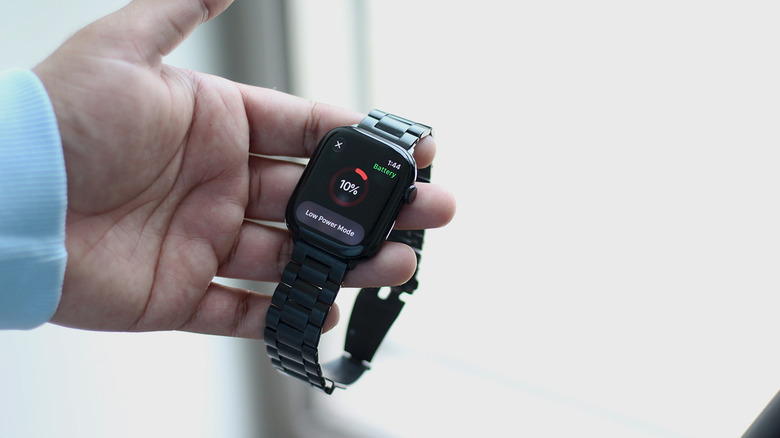 Adnan Ahmed for Engadget Add Engadget on Google: Preferred Source Google Discover
Among the improvements the Apple Watch receives with each iteration, battery life is something everyone wants more of. The company touts that the Apple Watch Series 12 lasts for 24 hours on a full charge. Apple measures this using a combination of 300 time checks, 15 minutes of app use, six hours of sleep tracking, 90 notifications and a 60-minute workout alongside music playback. Real-world results will naturally vary depending on how much you use your Apple Watch every day.
If your Apple Watch's battery health has depleted significantly, bringing it in for a battery replacement could help restore its original endurance. You can check battery health status on your watch by navigating to Settings > Battery > Battery Health. Power users might want to look at the Apple Watch Ultra 4 as their next buy since it's better equipped to handle constant, demanding usage with its larger battery.
That said, there are a handful of software tricks you can use to squeeze more battery life out of your existing Apple Watch, especially if it's not yet due for a battery replacement. Some of these are simple toggles to enable, while others involve making small adjustments to how you use your watch throughout the day.
1. Turn on Low Power Mode
 Adnan Ahmed for Engadget
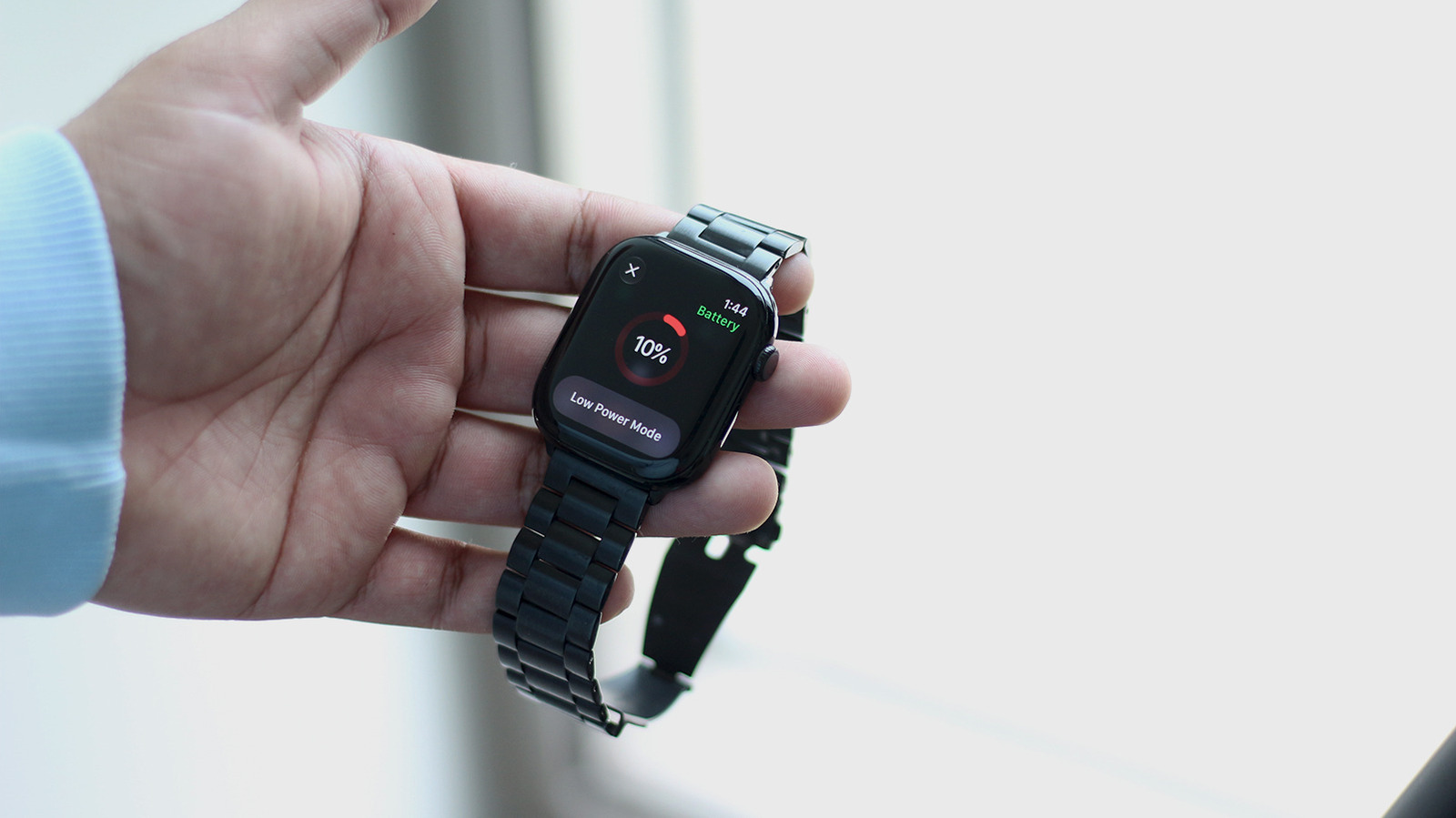
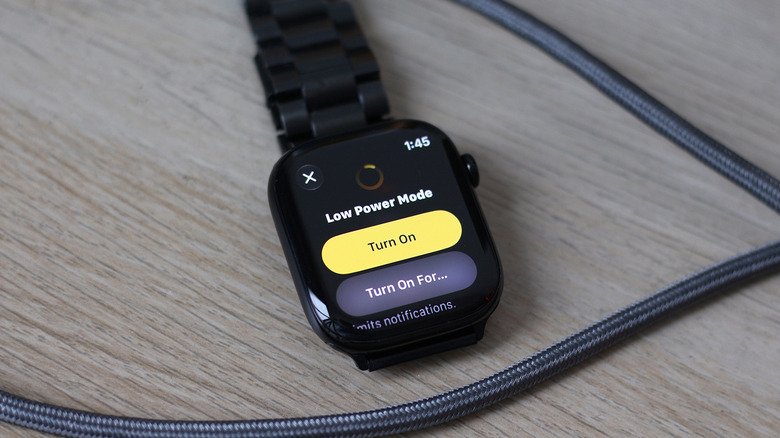
The easiest way to extend your Apple Watch's battery life when it's running low is to turn on Low Power Mode. You can access this feature by pressing the side button, tapping the battery percentage and selecting Low Power Mode.
An information card will display the first time you use this feature — scroll down and tap on Turn On. Alternatively, you can choose to keep Low Power Mode on for one, two or three days if you know you'll be away from a charger for a while. You can also access this battery saver feature by heading to Settings > Battery.
A few changes are immediately noticeable when you turn Low Power Mode on. The Always On display is disabled, as are the Wrist Flick and Double Tap gestures. Your watch will still light up its display automatically when you raise your wrist. Background heart rate and blood oxygen measurements are also paused; you can use their respective apps to get manual readings at any time, but low, high or irregular heart rate notifications are disabled. Losing basic health tracking features can be a dealbreaker to many.
Apple says that Siri requests can take longer on the Apple Watch when it's in Low Power Mode, too. Live Activities and the complications on your watch face will update less frequently and scrolling may stutter a bit. Your Apple Watch will continue to receive notifications and calls, but only if its paired iPhone is nearby. When you launch an app that requires internet access, Low Power Mode temporarily turns on Wi-Fi or cellular data.
2. Pick the right connectivity method
 Adnan Ahmed for Engadget
The Apple Watch works best when it's near its paired iPhone, but it can also connect to the internet on its own when needed. Any Apple Watch can connect to Wi-Fi networks, while cellular models offer even greater freedom by utilizing mobile data.
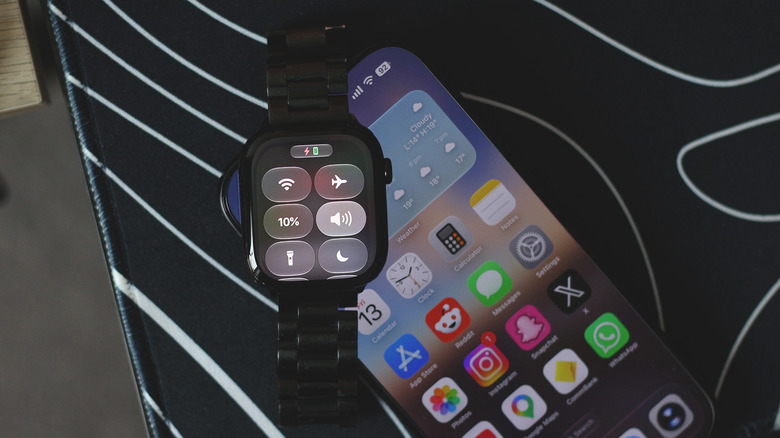
However, Apple recommends keeping the two devices nearby when you need to maximize battery life on your watch. This is because the Apple Watch piggybacks on its paired iPhone's internet connection over Bluetooth. When your devices are connected, you'll spot a tiny green phone icon in Control Center on your Apple Watch.
Cellular connectivity is convenient, but if you're somewhere that has Wi-Fi available, using that instead can conserve battery life. When you're not actively using your watch and don't mind it being disconnected for a while, you can stretch its endurance even further by enabling Airplane Mode. Find all these toggles in Control Center or access them through the Settings app.
Even without access to an internet connection, your Apple Watch can track workouts, play music or podcasts that have been downloaded, make purchases using Apple Pay and track your sleep. A good chunk of the built-in apps, like Alarms, Timers, Medications and Voice Memos, also work just fine.
3. Optimize background app activity
 Adnan Ahmed for Engadget
The Apple Watch is much more than just a fitness tracker. It can come in handy when your iPhone isn't nearby and you receive a call or message. Newer models come with improved speakers capable of playing music directly. And when you install an app on your iPhone, your Apple Watch will automatically install its companion version (if available).
This is all great for convenience, but means your watch might end up with a bunch of apps you don't really need on your wrist. Those apps might also increase battery consumption by refreshing in the background and sending you notifications. Using the built-in speakers consumes more battery than connecting headphones does.
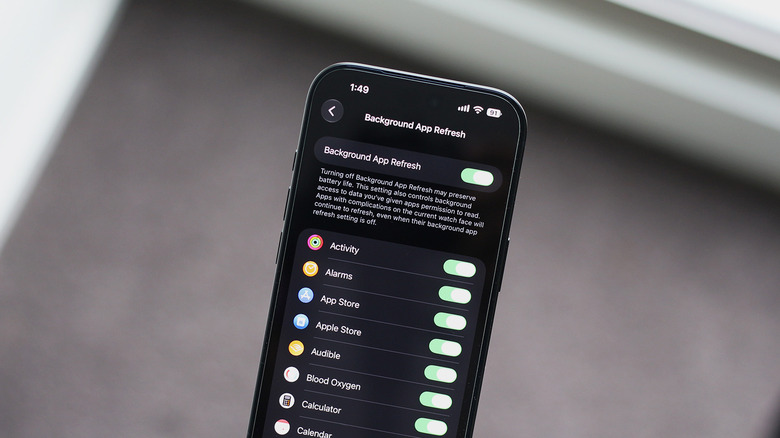
Start by uninstalling unneeded apps from your watch directly, which doesn't remove them from your iPhone. If you use an app on your Apple Watch occasionally but don't need it constantly fetching new information, navigate to Settings > General > Background App Refresh and turn its toggle off. It's also an option to disable Background App Refresh entirely, but this will affect all apps on your watch.
You can also disable certain app notifications if you don't want your watch constantly buzzing on your wrist. By default, app notifications you've disabled on your iPhone will also be disabled on your Apple Watch, but you can customize which apps send notifications to your watch independently through the Watch app on your iPhone.
Navigate to Notifications, scroll down to the Mirror iPhone Alerts From section and disable the toggles for any apps you don't want sending notifications to your Apple Watch. Fewer notifications mean fewer vibrations, fewer screen wake-ups and thus potentially less battery drain throughout the day.
4. Disable the Always On display
 Adnan Ahmed for Engadget
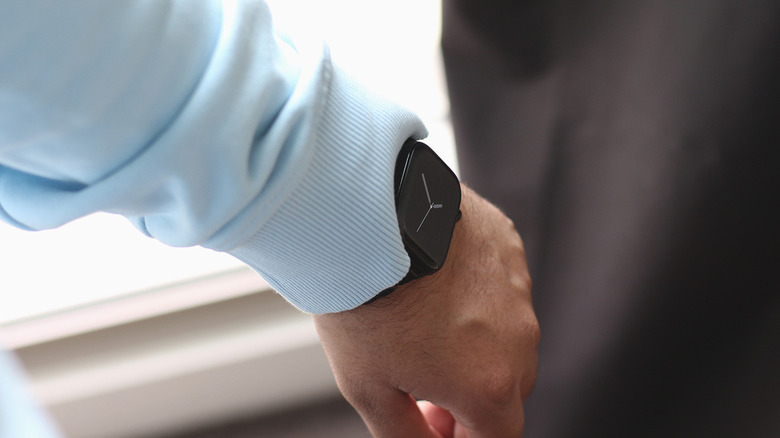
For a more granular approach, you're able to turn off Always On display without giving up the other features Low Power Mode shuts off. On your Apple Watch, navigate to Settings > Display & Brightness > Always On and turn the toggle off.
Alternatively, this menu has options to customize what information shows on the Always On display, such as Live Activities or complication data. Macworld tested how big of a difference turning this feature off makes, and reported that disabling Always On display extended battery life on the Apple Watch by an impressive 10 to 12 hours.
To minimize screen-on time, always cover your watch with your palm when you're done using it. You might also want to turn off the Wake on Wrist Raise toggle (in the same menu) to prevent your watch from lighting up accidentally. Since Low Power Mode disables other gestures, it's fair to assume that shutting off features like Double Tap and Wrist Flick could help conserve a little more battery. You can find these toggles by navigating to Settings > Gestures.
5. Use the Extended Workout mode
 Adnan Ahmed for Engadget
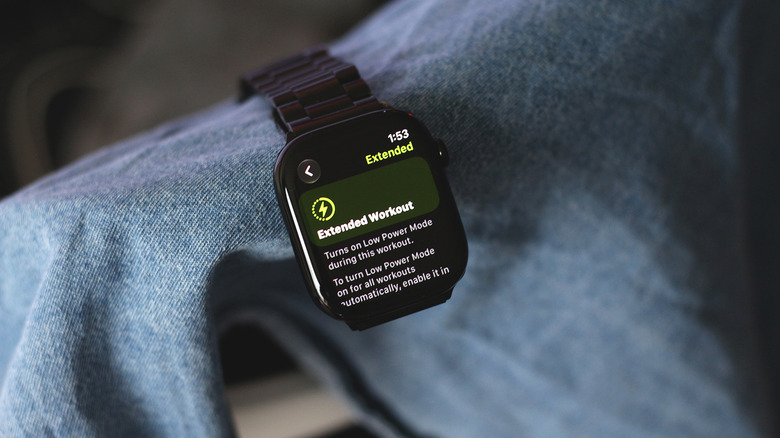
If you don't like the barebones feel of the Apple Watch when using Low Power Mode, you can configure it to only kick in during specific workouts. This is a great option if you regularly track longer exercise sessions and are willing to sacrifice some workout tracking features in exchange for longer battery life. In watchOS 27, the Workout app introduced two new options that turn Low Power Mode on during workouts.
Open the Workout app, select an activity type and tap the Goals and Targets button in the top-right corner. Scroll down and tap on Extended, then select Extended Workout to start tracking your activity. Some workouts have a second Max Extended Workout option as well that reduces the frequency of GPS and heart rate measurements. It will also disable alerts, splits and certain metrics like current pace during the workout. Once you finish the exercise, Low Power Mode will automatically turn off.
If you want the battery saver feature to kick in automatically every time you start a workout, navigate to Settings > Workout and turn the Low Power Mode toggle on. This eliminates the need for you to manually select the Extended Workout option each time — it's one of those underrated Apple Watch features that are easy to miss.