If you lose internet, you still have entertainment options.
By Lawrence Bonk July 14, 2026 2:30 pm EST Gordonbellphotography/Getty Images
 The rise of Roku TVs, smart TVs and streaming boxes has been a boon for couch potatoes, but only if the Wi-Fi is working. These devices lose the vast majority of their functionality when the internet goes out. After all, you can't open up the Netflix app without access to Netflix.
That doesn't mean the viewing party has to stop. There are actually a few ways you can use these devices to watch stuff if you haven't paid the latest Xfinity bill.
Use the humble USB drive
 Unsplash/Barry A
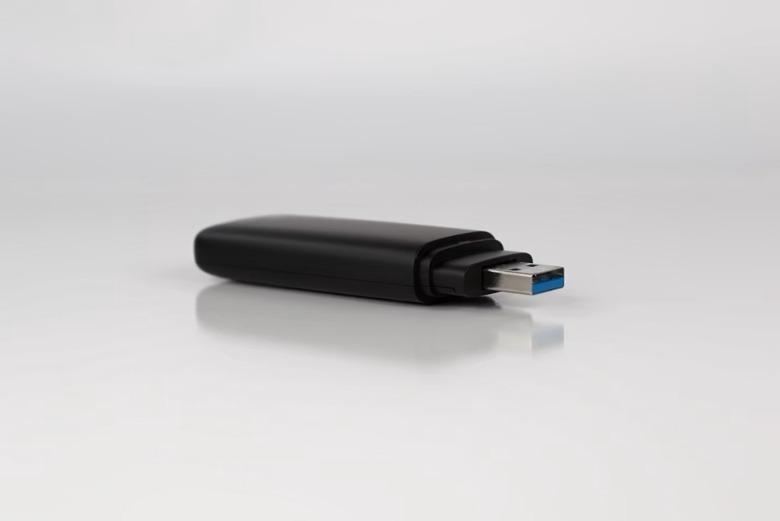
USB drives make for capable media machines. Just upload content directly to the stick and get going. The vast majority of smart TVs, including Roku TVs, include a USB port or two for this very reason. The same goes for many streaming boxes, but check the back for a port to be sure. Streaming sticks don't usually have a USB port of their own, but some include built-in storage.
There are a couple of little caveats here. For actual Roku devices, make sure to download the Roku Media Player ahead of time. It doesn't require the internet to operate, but it does for the initial app download. Some devices could also run into USB formatting issues, as USB 3.0 drives may not work in USB 2.0 ports. Read the fine print on your particular device for more information.
Finally, these devices are typically limited by what video formats they support. Roku gadgets tend to support MP4, MOV, M4V, MKV and WebM, but results will vary depending on the make and model. If a piece of media isn't supported, there are lots of conversion tools out there.
Create a media hub
 Roku
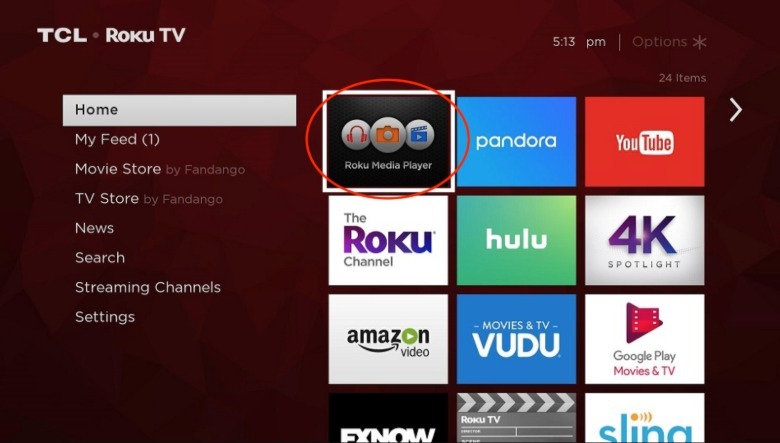
Roku The Roku Media Player app is extremely useful and can act as the centerpiece of a media hub. Again, download this right now so it's ready to go when the internet goes out. Once downloaded, content can be accessed in a number of ways.
If the Roku device has a USB port, like with most TVs and many streaming boxes, you can use a stick drive. Load the drive with all of your favorite content, and select the USB stick from the Media Type selection screen. Use the remote to search the stick for the media you want to watch or listen to.
You can also use a PC or another form of network-attached storage (NAS) to stream. This will work so long as the Roku device and the PC are on the same local Wi-Fi network, even if there's no internet. Once both devices are connected to the network, the PC or NAS should show up as an available option in the Media Type selection screen. The only caveat here is that the external drive needs to be properly formatted. The Media Player app supports FAT16, FAT32, NTFS, EXT2, EXT3, exFAT and HFS+.
Choose a dedicated media server like Plex
 Plex
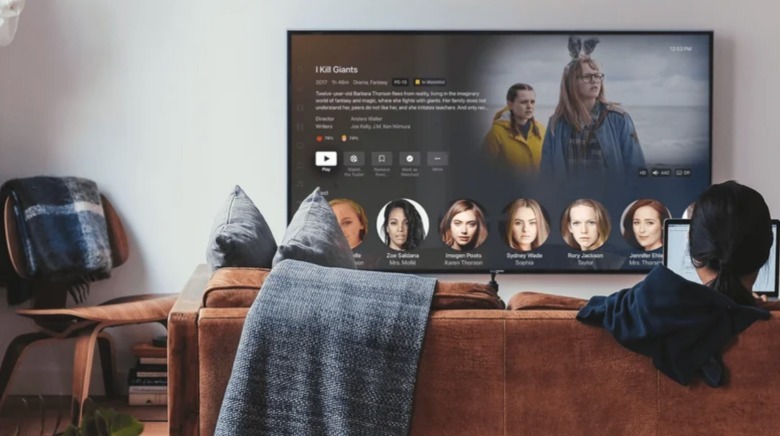
Plex There are some serious benefits to going with a media server from companies like Plex, Emby and Jellyfin. They offer cleaner organization than a media hub, with an interface that feels like a streaming platform, and they can often automatically transcode media formats to make it easier to watch content.
Finally, and this is the big one, the servers don't typically require an active internet connection to work. Of course, this assumes that you've already uploaded the content and that everyone is on the same local network. Roku offers apps for many of these platforms directly from the Roku Streaming Store.
Connect an antenna to a Roku smart TV (or any other brand)
 Mohu
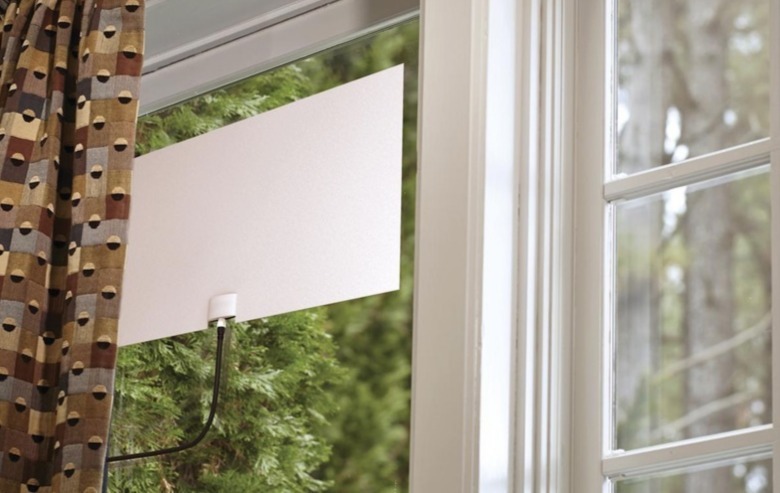
Mohu Smart TVs have one final option. Buy an antenna and plug it in to get local channels. This tech has come a long way from rabbit ears. Many modern products offer 4K visuals and ship with signal boosters that increase the number of available channels. They cost around $15 to $60, depending on how many bells and whistles you want.