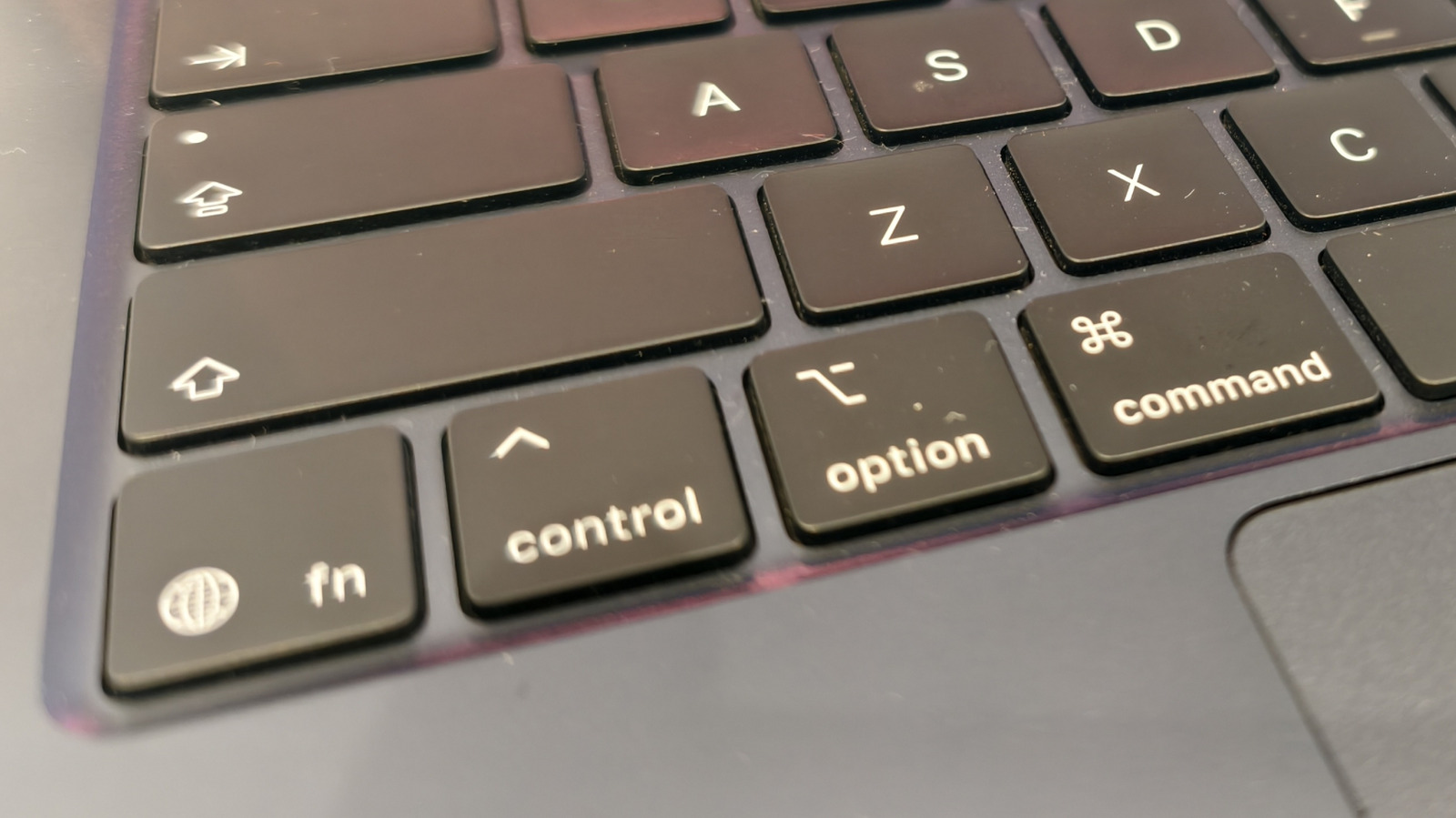
With all these useful talents provided by your confusing little Globe key, perhaps it’s time you began to use it as much as I do?
By Jonny Evans Nov. 28, 2026 3:30 pm EST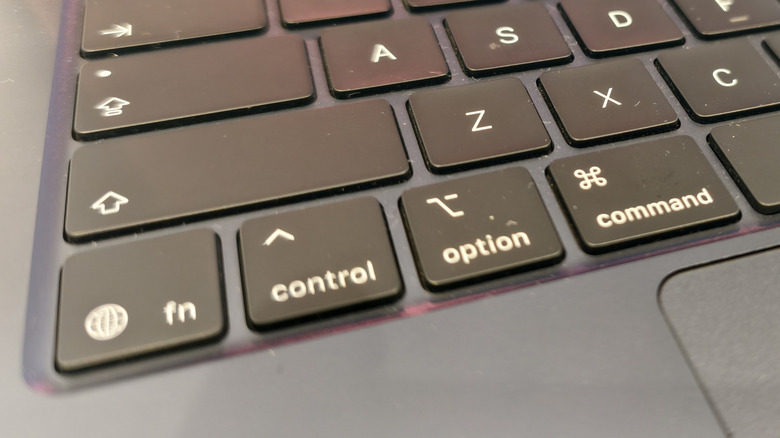 For East/Shutterstock Add Engadget on Google: Preferred Source Google Discover
Do you ignore the Globe key on the M6 MacBook? Or are you sticking with your M4 and M5 model? Maybe you've learned to tap it sharply once to access the Emoji on your Mac while typing. I use it all the time and wanted to explain why.
While it's not on most third-party keyboards, the Globe key is a fixture on MacBooks such as the latest and greatest M6 and other Apple keyboards. It doubles as the Function (Fn) key, which is why it carries both a globe icon and the letters "Fn." It still works as a Function key: hold it while pressing one of the "F" keys along the top row of the keyboard to trigger their actions, which can include shortcuts on your Mac. Doing so overrides any F key's default system function, such as brightness, volume controls and Spotlight search. In this case, Globe/Fn acts as a modifier key.
If you use F-keys extensively in your work (I'm looking at you, programmers and gamers), you can make them the default behavior. Open Settings > Keyboard and toggle Use F1, F2, etc. keys as standard function keys to On. Moving forward, you'll need to press the Globe/Fn button to access brightness and volume controls.
The MacBook Globe key lets you navigate your Mac
 Showtime.photo/Shutterstock
Combined with a letter, your little Globe key also helps you in other ways:
- Fn + E: Opens the Emoji and Symbols viewer.
- Fn + D: Starts or stops voice dictation.
- Fn + C: Opens Control Center.
- Fn + N: Opens Notification Center.
- Fn + A: Moves keyboard focus to the Mac icon and activates the Dock.
- Fn + Q: Creates a Quick Note in Notes.
If you see no value in any of those, you can assign the Globe with a more useful task in System Settings > Keyboard > Keyboard Shortcuts > Modifier Keys where you use the drop down menu so that a single tap of the Globe icon acts just like the Control, Option, Command, or Escape keys, or No Action.
It's also a Page Up/Down button. Press Globe + Backspace/Delete to perform a forward delete; use Globe and an up or down arrow to scroll one full page at a time; or use it with the left or right arrows to jump to the beginning or end of a document.
If you're multilingual, you may have multiple language keyboards enabled on your Mac. A quick press of the globe key lets you seamlessly switch between them.
You can customize what a single tap does in Settings > Keyboard > Press Globe key to. The dropdown menu lets you set it to Change Input Source, Show Emoji & Symbols, Start Dictation, or Do Nothing.
How to use the Globe key like a pro
 Nwz/Shutterstock
When working on a MacBook, the Globe key comes into its own for the window tiling functions it unlocks. These are useful on any display, but they prove invaluable when working across multiple apps on a smaller screen.
-
Globe + Control + Arrow keys: Snap the active window to the top, left, bottom or right of the screen.
-
Globe + Control + Shift + Arrow keys: Tile the active window to one half of the display while automatically placing the second most recently used window in the opposite half.
-
Globe + Control + Option + Shift + Arrow key: Arrange three windows with one window taking up half the space.
-
Globe + Control + F: Expand the active window to fill the whole desktop, but not in full-screen mode.
-
Globe + Control + C: Center the active window on screen or use R instead of C to return the window to its previous dimensions.
Finally, the little globe keyboard character helps navigate the desktop. Globe + F toggles full-screen on and off, while Globe + H moves open windows aside. Tap Globe + M to move keyboard focus to the top menu bar, allowing users to navigate app menu items using the arrow keys. Press Globe + Control + F8 to focus on the status icons on the right of the menu, or use Globe + Shift + A to open or close the App Browser. With all these useful talents provided by the confusing little Globe key, it might be time to start using it more often.