Turns out you can in just a few simple steps.
By Isaac Egbon Nov. 15, 2026 10:45 am EST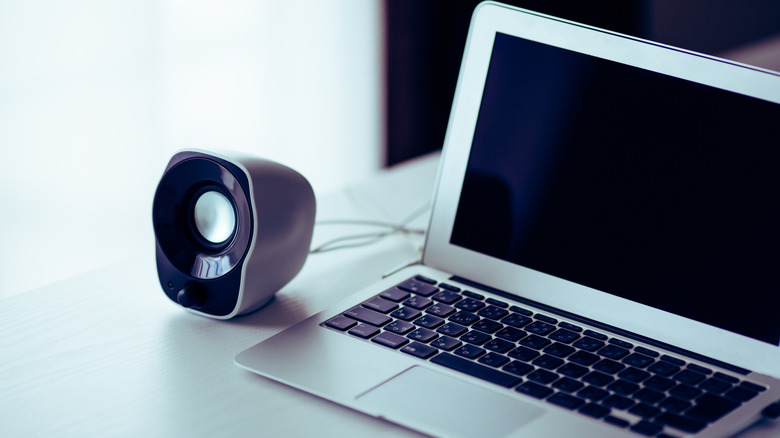 Bee32/Getty Images Add Engadget on Google: Preferred Source Google Discover
Yes, you can use your Android phone as a speaker for your computer, even a cheap phone. At this point the real question should be what can't you do on your Android phone, but that's beside the point. Using your Android phone as a computer speaker is probably easier than you think, but you'll have to install an app on both your PC and your phone. It's a good temporary fix if your computer's speakers developed an issue, and it's one of several ways to reuse your old Android phone instead of forgetting it in a drawer.
For this guide, we'll use the AudioRelay app (though there are other apps available), which works by streaming the audio from your PC to your Android phone over your Wi-Fi network, not Bluetooth. AudioRelay works on Windows, Mac and Linux. If you're wondering why regular Bluetooth pairing doesn't work, it basically comes down to how even the best Android phones are mostly set up to act as the source of a Bluetooth connection, not the receiver.
How to use your Android phone as a computer speaker
First, install the AudioRelay app on your computer and your Android phone. Depending on your computer's OS, you might have to take a few extra steps to run AudioRelay. On Windows and Linux, running and connecting AudioRelay can be as simple as installing and opening the app on your Android phone and PC. On macOS, you'll need to install a virtual audio device like BlackHole (it's free) because macOS doesn't let apps like AudioRelay capture system audio directly.
Once that's done, make sure both devices are connected to the same Wi-Fi network. Next, launch AudioRelay on your phone and your computer. On your Android device, tap your computer's name under the Server section, then on your PC, you should see your Android device under Connections. That's all. Now simply play any audio on your PC and it'll output on your Android phone's speakers. On Mac, you'll need to select BlackHole (or your virtual audio device) in AudioRelay's Server section, then set it as sound output in Audio MIDI Setup. For Linux users, if the audio device selected by default doesn't play sound, select the device that begins with "Monitor of" in the Server section. To stop streaming audio, press the Stop button in the Android app.
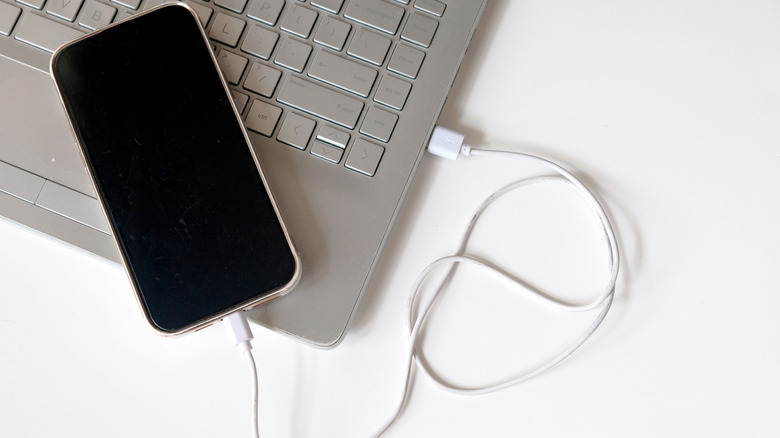
If you're running into audio lag or latency issues, you can use USB tethering to get a more stable connection. First, use a USB cable to connect your phone to your computer. Next, open the AudioRelay app, scroll to USB tethering, tap Settings, then toggle on USB tethering. Go back to the app and tap your computer's name under the Server section. Do note that by default, AudioRelay pauses audio when another app on your Android phone uses the speakers. To change that, open the AudioRelay app when connected. Then on the Player tab, scroll down to Player settings, tap Exclusive audio, and pick one of the Deactivated options.
How to reduce lag when using your Android phone as a computer speaker
 Deni Purwoko Hadi/Shutterstock
Laggy and choppy audio can ruin the experience of using your Android phone as a computer speaker, but fear not, there are simple solutions to mitigate both problems. Both issues usually come down to the buffer. A smaller buffer size reduces audio delay but leads to more choppy audio, while a larger buffer size smooths out the sound at the cost of more delay. The best fix for this is going wired. If that doesn't work for you, you can minimize delay by following these steps: Open the AudioRelay Android app > scroll to Player settings > Buffer amount > Low buffer. For a balance, you can try the Medium buffer option in the same menu. In case you're wondering, having a buffer is necessary because the network doesn't deliver audio at a steady pace, but your phone's speaker needs it at a steady pace. The buffer holds audio to cover up for network hiccups.
Talking about network, audio streaming performs better with devices on a 5GHz connection than on a 2.4GHz one. So if your router supports that band, connect both devices to it. Turning off Bluetooth also helps because it uses the same 2.4GHz band as Wi-Fi and the two can interfere with each other.
As you probably expect, AudioRelay has ads in the free version. You can purchase a Premium version that costs about $1 monthly, with yearly and lifetime options available. It removes ads and unlocks unlimited connection time. It also provides other paywalled features including custom buffer settings that let you finely adjust the buffer, higher-quality uncompressed audio and multi-device audio streaming.