Avoid forwarding ports by using this handy tool.
By Charles Burgar Nov. 21, 2026 4:45 pm EST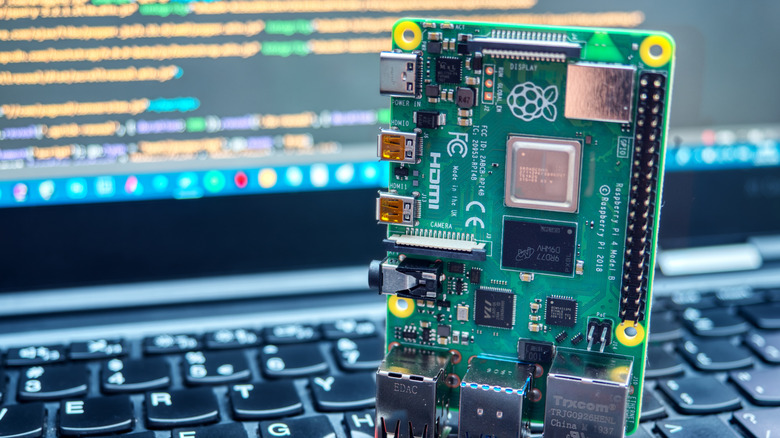 Pazargic Liviu/Shutterstock Add Engadget on Google: Preferred Source Google Discover
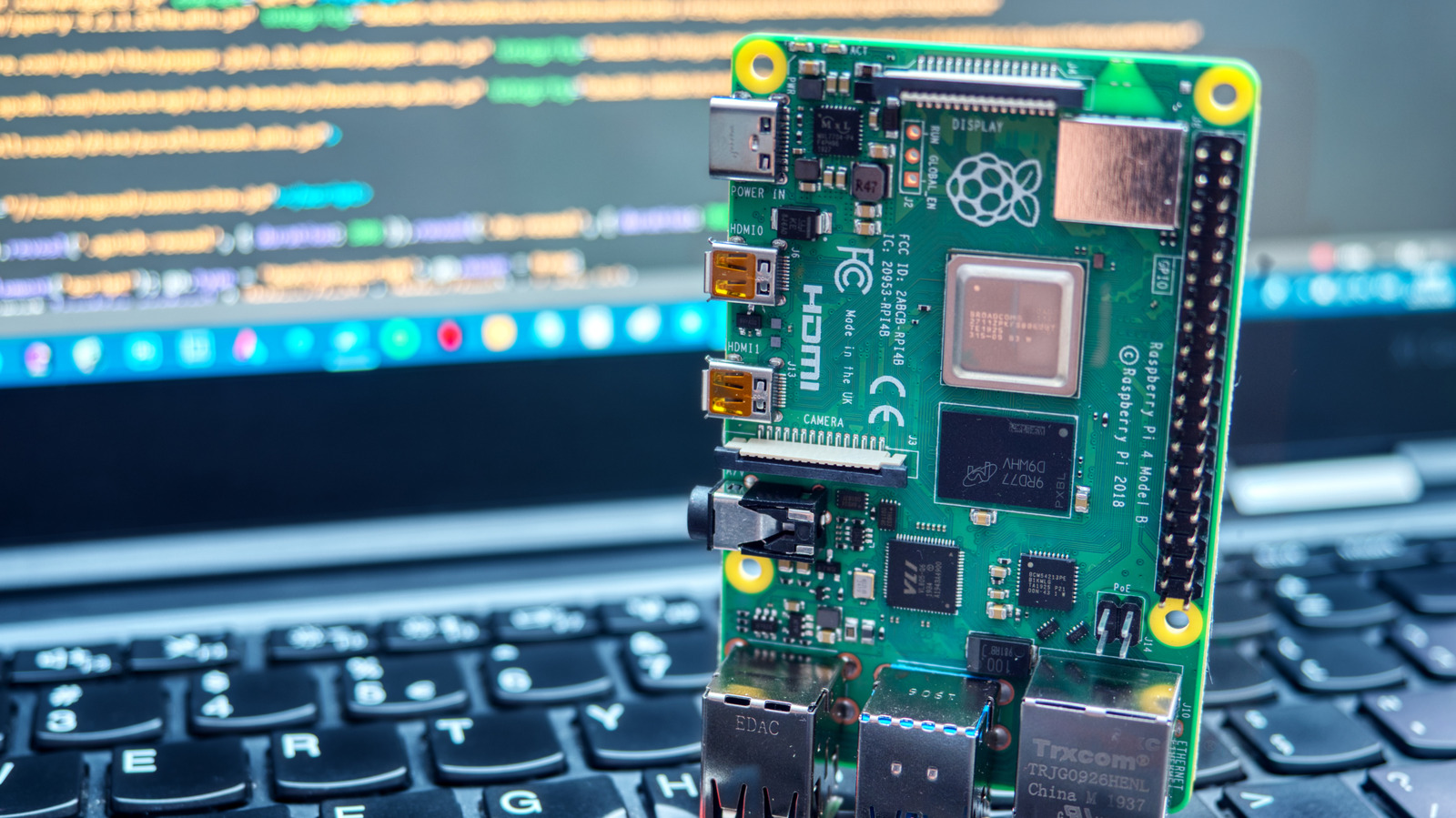
Remote access to a Raspberry Pi is invaluable for home projects when you can't access your device directly. In the past, logging into your Pi meant setting up a VNC service or SSH tunneling, both of which require port forwarding. It can be a hassle for beginners and a potential security risk for certain projects. Thankfully, there's a better way to access your Raspberry Pi remotely without wrangling ports.
Raspberry Pi Connect is a program created by Raspberry Pi that lets you communicate with your Pi unit over the internet from outside your network. It's convenient, doesn't require port forwarding and lets you access your Pi when you're outside your network. The best part is that Connect works automatically with your device if it's running Bookworm or later. Older devices have limited options with Connect, but as long as you're running Pi OS or its Lite variant, you can set it up as quickly as running a few commands in an SSH terminal.
How does Raspberry Pi Connect work?
 MR_ross/Shutterstock
Raspberry Pi Connect leverages WebRTC, a peer-to-peer connection between two web browsers that runs through a secure tunnel. It doesn't require any third-party software on your Pi unit, and its secure nature lets it bypass strict firewalls and restricted NATs. Since it runs over the internet, you will need internet access and a Raspberry Pi Connect account to use it.
Connect offers two key features: screen sharing and remote shell. The remote shell acts as an SSH terminal that runs in your browser, making it ideal for monitoring or running commands remotely. Screen share lets you turn your browser into a remote desktop for your Pi. Screen shares run through a Wayland session, which will use the Pi's resources and require an active desktop session; remote shell does not. If you're using an older Pi model, be sure to update its Pi OS if you want to use Connect's screen sharing feature. Pi OS Lite and X11 are not compatible with this feature.
How to use Raspberry Pi Connect
 Raspberry Pi
Using Raspberry Pi Connect is fairly easy. You'll need two things: Pi Connect installed on your Pi unit and an internet connection. Pi Connect comes in full and lite packages. The full package includes screen-sharing compatibility for Pi units connected to a display, while the lite package is for remote access only. To install the package, start an SSH session with your Pi unit and run the following:
- For the full package, type "sudo apt install rpi-connect".
- For the lite package, type "sudo apt install rpi-connect-lite".
After installing either package, type "rpi-connect on" to enable access to the internet.
 Raspberry Pi
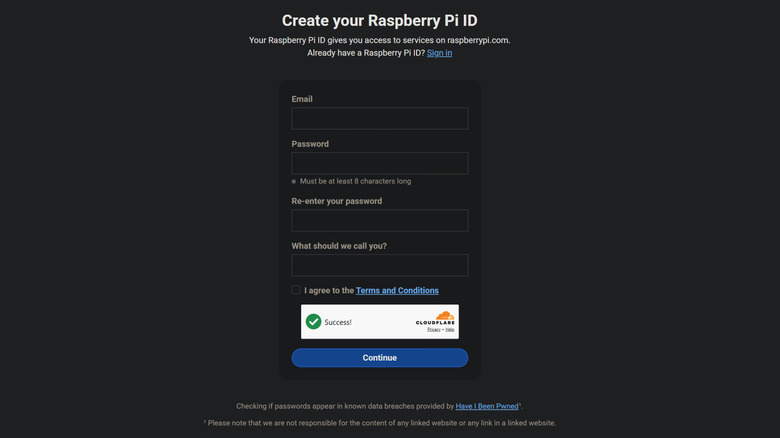
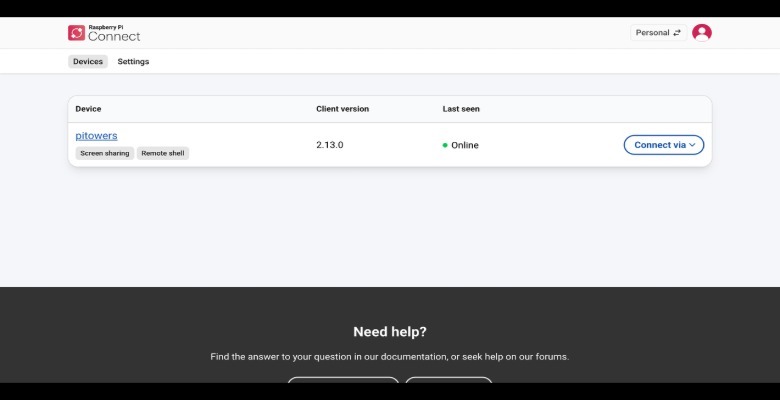
Now that Connect is ready, it's time to access your Raspberry Pi. Head to connect.raspberrypi.com and sign in to your Pi account. If you don't have one, you can create one from that menu. Once logged in, you'll need to link your Pi unit to your account. Specific instructions on how to link your Pi unit can be found on the Raspberry Pi website, located under the "Get Started" section. Once linked, sign in to your account, select the "Connect via" button, and then pick your preferred connection option. If you need to make further changes to your Raspberry Pi, you can do so easily by logging in and connecting to your device.